This is not part of my normal Whonix work; I had some extra free time on Christmas, I’ve been looking at this idea for a while, and I finally decided to try it out to see what would happen.
VirtualBox is able to use run VMs with the help of Hyper-V. This however is slow and unstable. QEMU also has support for running VMs with the help of Hyper-V, which made me wonder if maybe QEMU would be more stable or less slow. With that in mind, here’s what I did:
QEMU for WIndows downloaded from: QEMU for Windows – Installers (64 bit)
I used the Whonix-LXQt 18.0.8.7 KVM image as a starting point. On my Linux primary system, I shrunk the QEMU images so they could be transported more easily:
qemu-img convert -O qcow2 Whonix-Gateway-LXQt-18.0.8.7.Intel_AMD64.qcow2 gateway.qcow2
qemu-img convert -O qcow2 Whonix-Workstation-LXQt-18.0.8.7.Intel_AMD64.qcow2 workstation.qcow2
Then I copied the shrunk images to a flash drive so I could move them to my Windows machine.
QEMU for Windows installation was, as usual, “double click the installer and follow the wizard”. This is just raw QEMU, no user interface on top of it like MacOS has with UTM.
Starting QEMU is slightly challenging because Windows doesn’t include things installed in Program Files in it’s executable path, so running QEMU looks something like:
cd C:\Program Files\qemu
.\qemu-system-x86_64
This of course just gives me a basic emulator window running SeaBIOS.
The Windows QEMU binaries support two “accelerators”; tcg (full emulation) and whpx (Hyper-V). I tried to use .\qemu-system-x86_64 -accelt whpx, but this failed because I didn’t actually have Hyper-V enabled. I used the UndoDisableHyperV.bat script from Whonix-Installer to re-enable it. After that, using -accel whpx worked.
Sparing the gory details of how I got the rest of everything working, this is what the final setup ended up looking like. Workstation is on the left, Gateway is on the right.
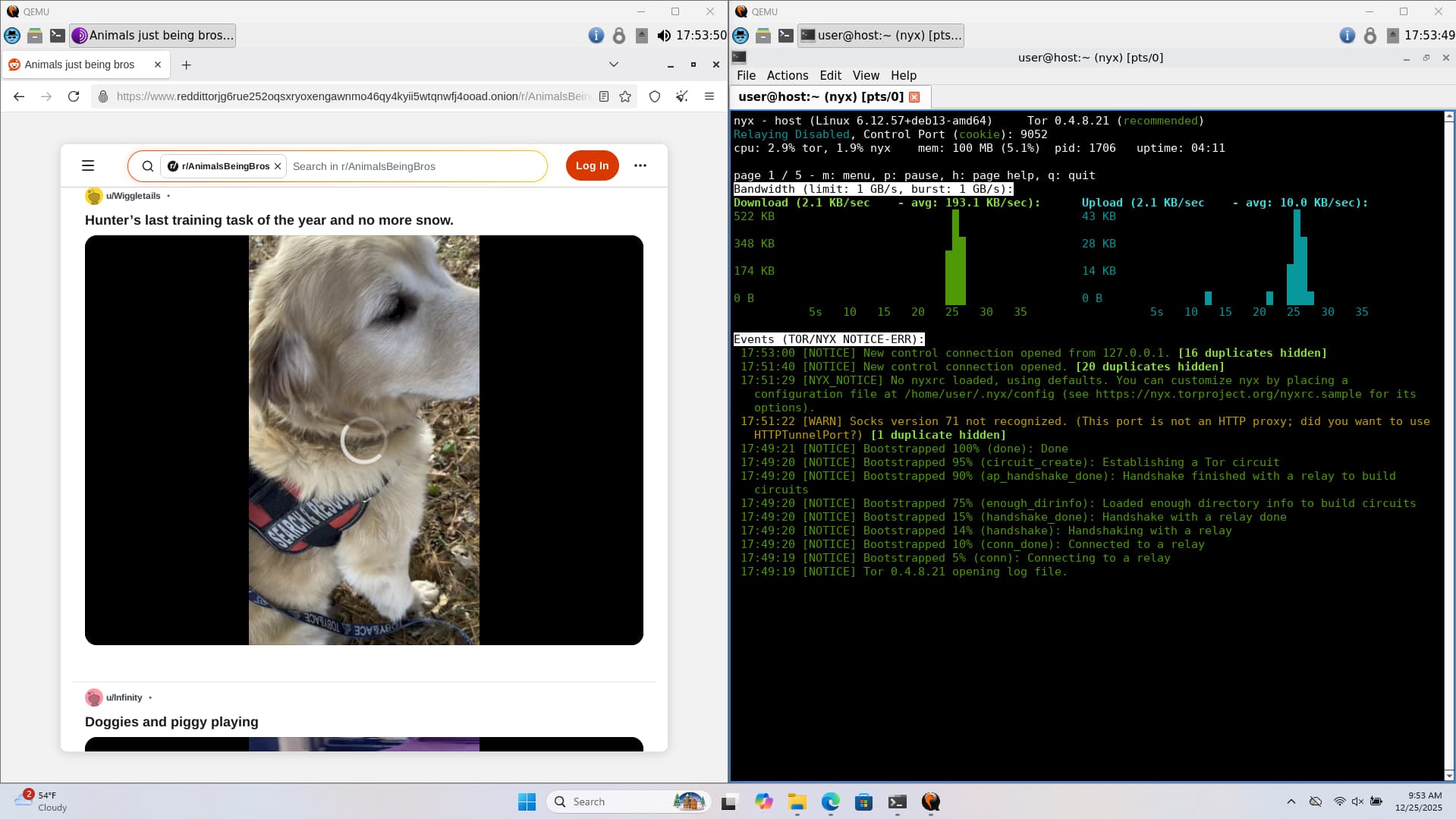
Dynamic resolution works (I can resize the VM window and the guest resolution automatically changes to fit). Mouse integration mostly works (sometimes window focus does weird things and sometimes the mouse pointer will get “trapped” in one window or the other, but it’s still quite usable). Performance seems decent at least initially, though I didn’t do much testing. There’s a worrying kernel warning about RETBleed (probably because of the virtual CPU I’m using, qemu64, I tried -cpu host but that made the VM crash without fail). Most of the devices are virtio, with the exception of some USB devices for the keyboard and mouse. The connection between the gateway and workstation uses a UNIX socket, so as to avoid making the gateway accessible on the LAN or similar (and yes, UNIX sockets do indeed work under Windows 11).
start-whonix-gateway.bat:
"C:\Program Files\qemu\qemu-system-x86_64" -nodefaults -machine q35 -cpu qemu64 -accel whpx -m 2G -smp 1 -usb -device usb-tablet -device usb-kbd -nic user,model=virtio-net-pci -netdev stream,addr.type=unix,addr.path=.\gateway.sock,server=on,id=whonixint -device virtio-net-pci,netdev=whonixint -vga virtio -display sdl,window-close=off -monitor stdio -drive file=.\gateway.qcow2,if=virtio,format=qcow2
start-whonix-workstation.bat:
"C:\Program Files\qemu\qemu-system-x86_64" -nodefaults -machine q35 -cpu qemu64 -accel whpx -m 2G -smp 1 -usb -device usb-tablet -device usb-kbd -netdev stream,addr.type=unix,addr.path=.\gateway.sock,server=off,id=whonixint -device virtio-net-pci,netdev=whonixint -vga virtio -display sdl,window-close=off -monitor stdio -drive file=.\workstation.qcow2,if=virtio,format=qcow2
It should be noted for anyone who looks at this and is thinking of trying it, this is completely unsupported. Systemcheck will gripe at you for using raw QEMU if you do this. Very minimal research has been done to see if this setup is actually secure, usability could probably be improved, and there aren’t any plans to develop this further. This is just something I thought should be possible, wanted to try, and wanted to share the results of.