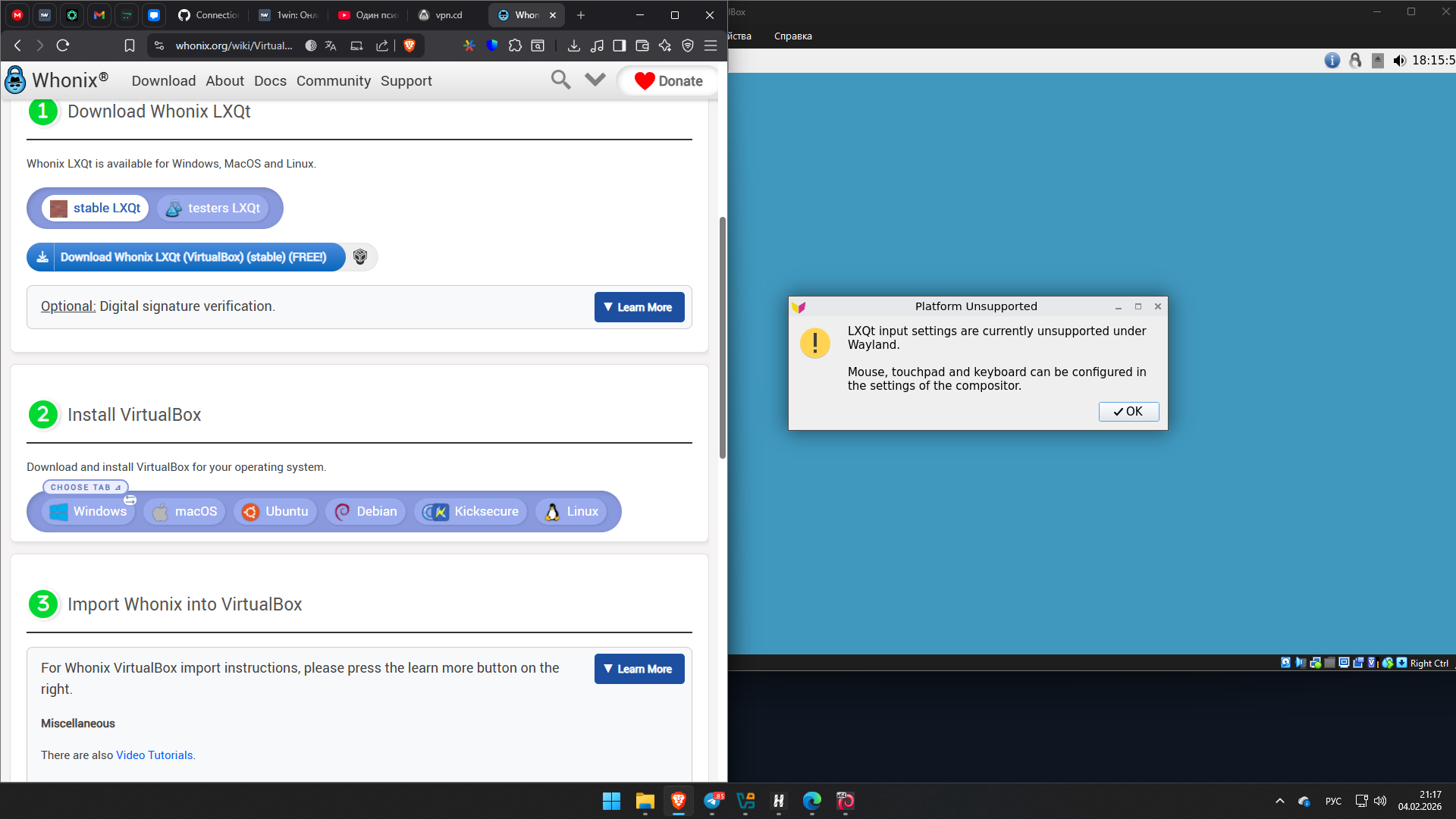
The message says why and what the solution is.
- Whonix 18 uses a Wayland display server, which has security advantages over the older X11 display server it previously used.
- LXQt’s keyboard and mouse configuration settings are not available under Wayland. This is not an error, but an indication that the button you’re clicking does not work, by design.
- You should configure keyboard and mouse settings in the Wayland compositor instead. It’s what displays the pixels on your screen, and is also what processes your mouse and keyboard input, so it’s where you can configure mouse and keyboard settings.
The Wayland compositor we use is “labwc”. labwc’s documentation may be seen here:
Configuration is usually done via an XML-based configuration file, which should be stored at ~/.config/labwc/rc.xml (you will probably need to create the ~/.config/labwc directory).
1 Like