# Can’t update Whonix in VirtualBox - sysmaint session login screen is not clickable
Hi everyone,
I’m running Whonix on VirtualBox and I’m unable to update my system.
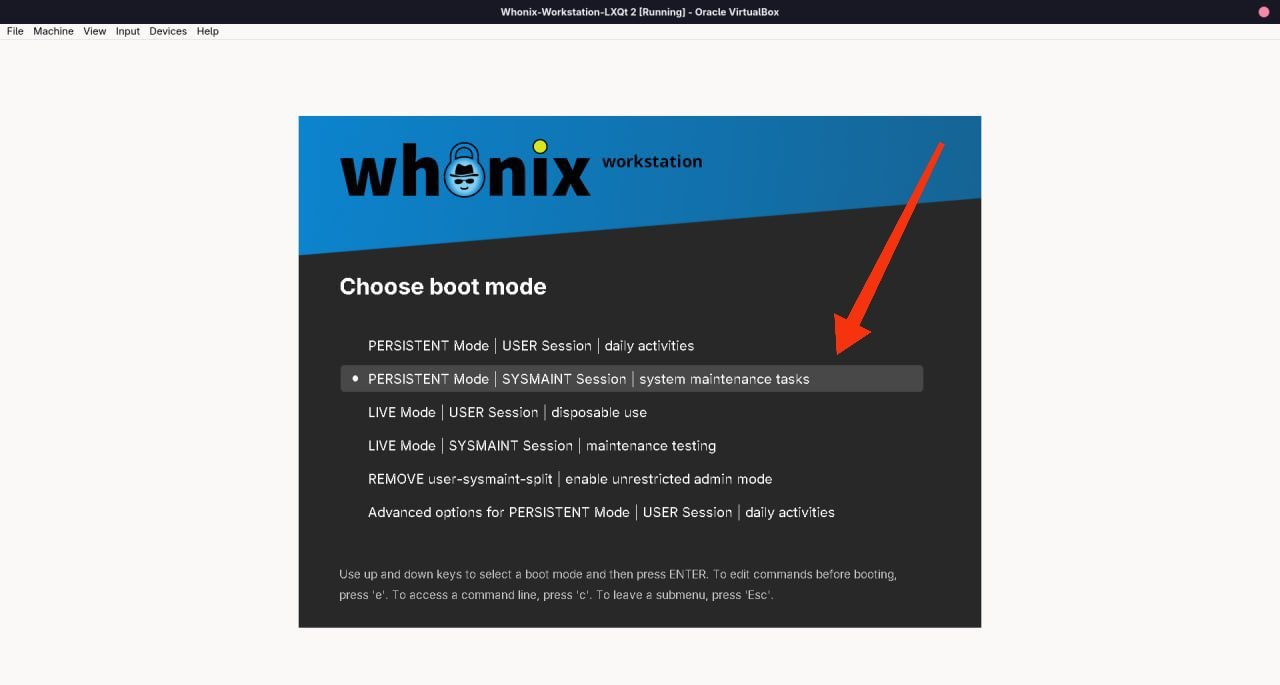
From what I understand, Whonix’s user-sysmaint-split security feature disables sudo and pkexec in the normal user session, so I tried to use a Sysmaint session instead.
However, I have two problems:
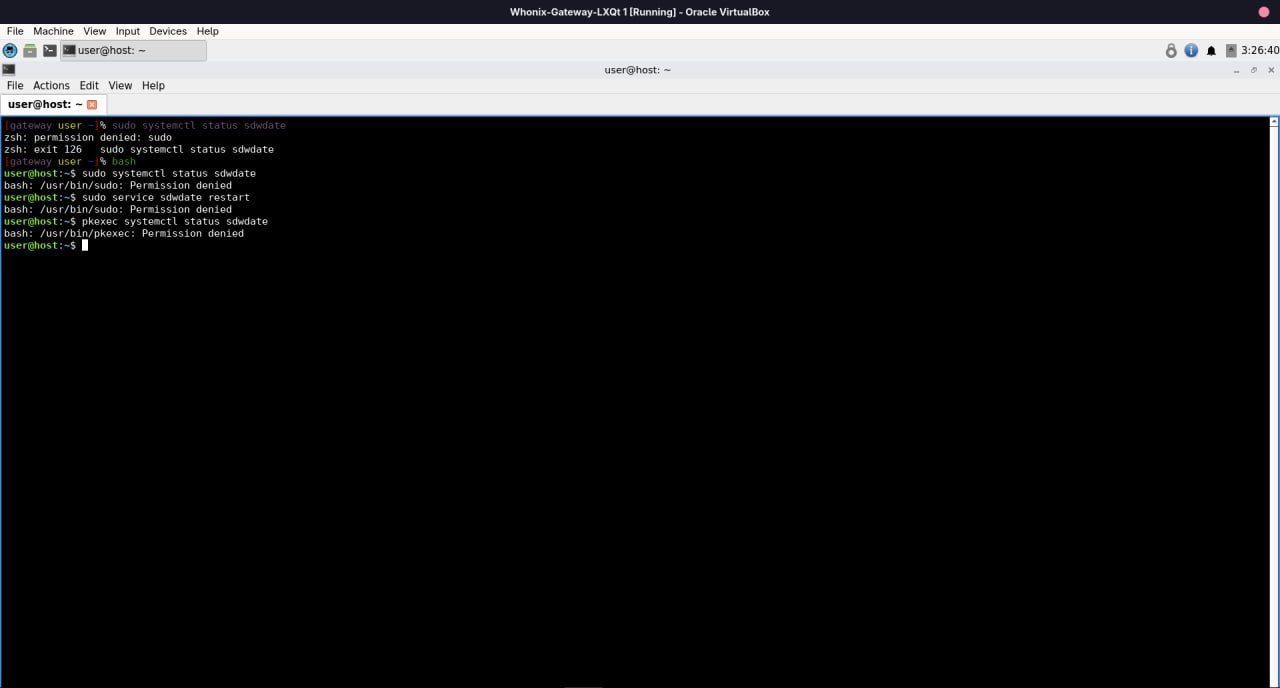
sudo and pkexec are blocked.
sudo systemctl status sdwdate
# /usr/bin/sudo: Permission denied

sudo service sdwdate restart
# /usr/bin/sudo: Permission denied

pkexec systemctl status sdwdate
# /usr/bin/pkexec: Permission denied
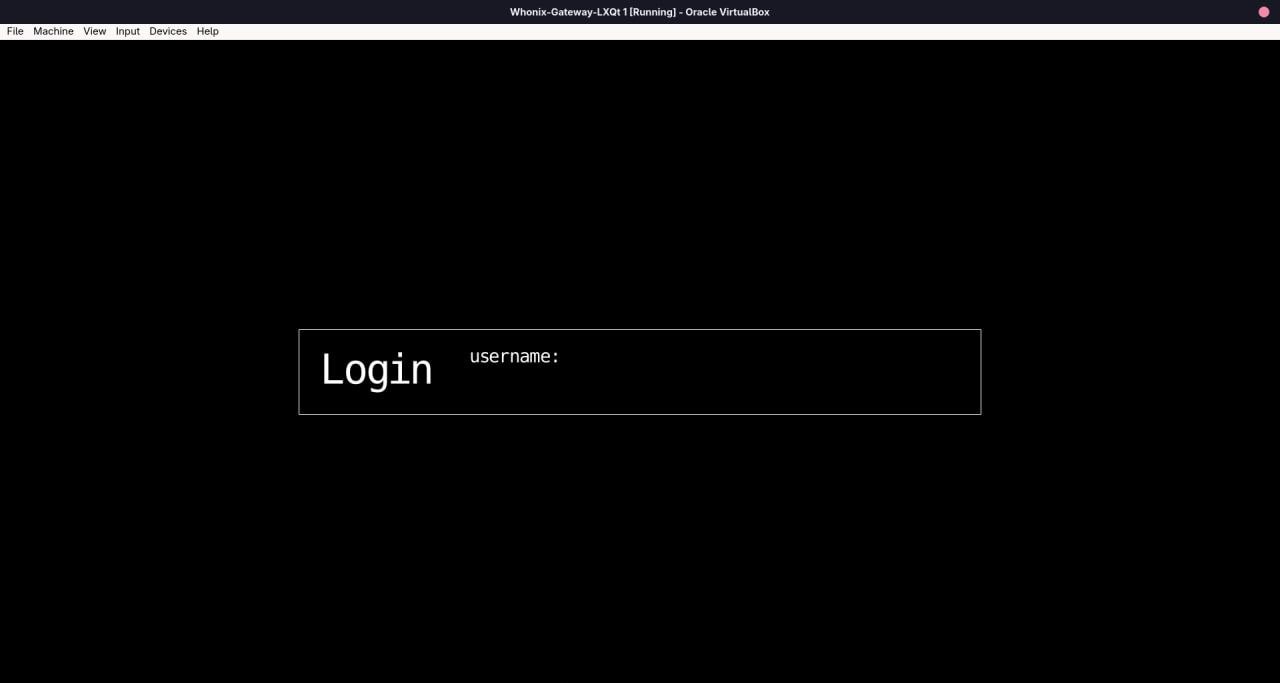
When I select the Sysmaint session, I get a login screen asking for a username, but I cannot click or interact with anything. The mouse and keyboard don’t seem to work on that screen.
Questions
Is this expected behavior with user-sysmaint-split?
Am I starting the Sysmaint session incorrectly?
Why is the login screen not accepting any input?
Is this a VirtualBox issue or a Whonix configuration issue?
What is the correct way to update Whonix in this situation?
Very weird that you are reporting this while you are using Whonix on Vbox, because this is more like a graphic card issue i encounter when i was testing kicksecure:
Read this entire thread and there are two additional threads linked to it for details.
The bottom line if you can try this method and see if it work:
Also may i ask which version you have downloaded? is it Whonix-LXQt-18.2.1.9?
Yes, privilege escalation utilities like sudo and pkexec are intentionally disabled unless you are booted in sysmaint mode.
No, booting it from the boot menu is the right way to do things.
The login screen doesn’t have any mouse-accessible controls, but it should accept keyboard input just fine. Ordinarily when I see keyboard input issues, I would suspect kloak (our input pattern anonymization system) to be at fault, but you’re running into these issues on the gateway, and kloak isn’t enabled by default on the gateway.
Does keyboard input work? Can you type sysmaint and press Enter here to log in?
(Note that the login screen shouldn’t appear at all unless you’ve disabled autologin for the sysmaint account. Even if you have disabled autologin, just typing the sysmaint username should be enough to log in unless you’ve set a password on the sysmaint account. If you have set a password, you’ll need to type that in and press Enter again.)
Unsure. It’s likely an issue with your installation, but it might be a bug.
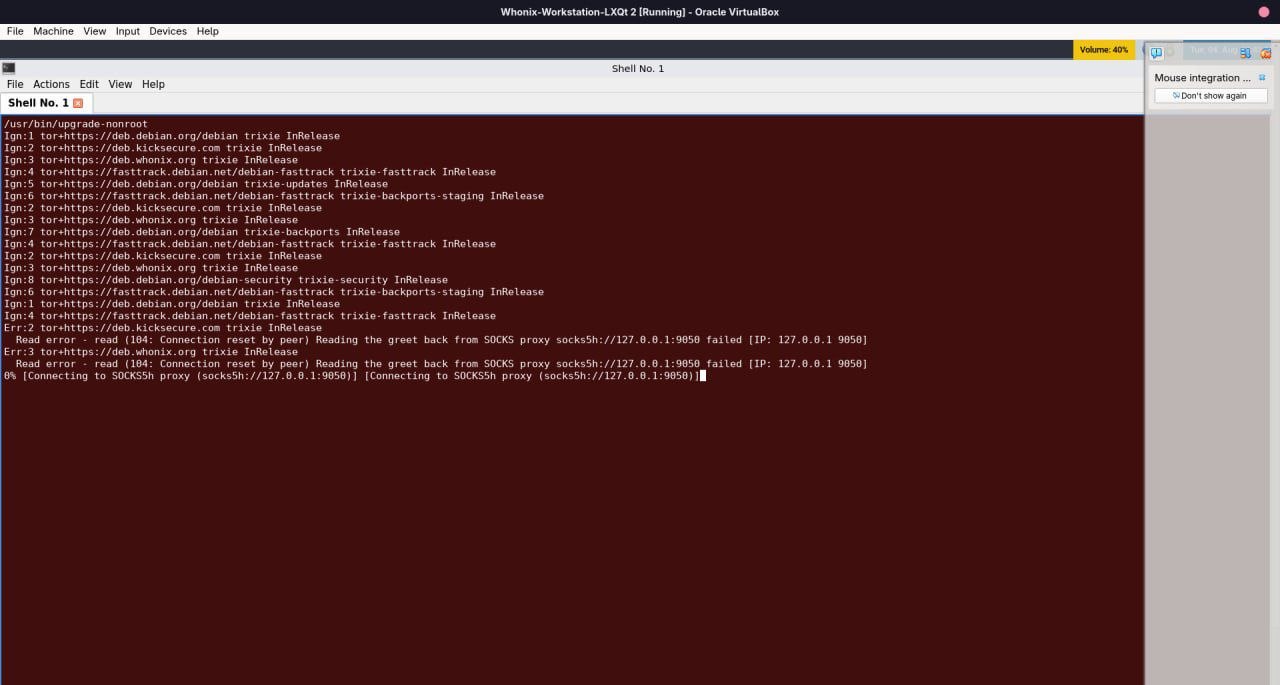
If all else fails, you can boot into sysmaint mode, switch to a TTY, log in as sysmaint, and run upgrade-nonroot from there. To switch to a TTY in VirtualBox, use the soft keyboard feature, and click the “Ctrl”, “Alt”, and “F4” keys. To switch back to a graphical session, click the “Ctrl”, “Alt”, and “F7” keys.
My graphics card is AMD, not NVIDIA, so I don’t think the Nouveau-related issue applies to my setup.
I’m running Whonix in VirtualBox, and the version I downloaded is Whonix-LXQt 18.1.4.2, not 18.2.1.9.
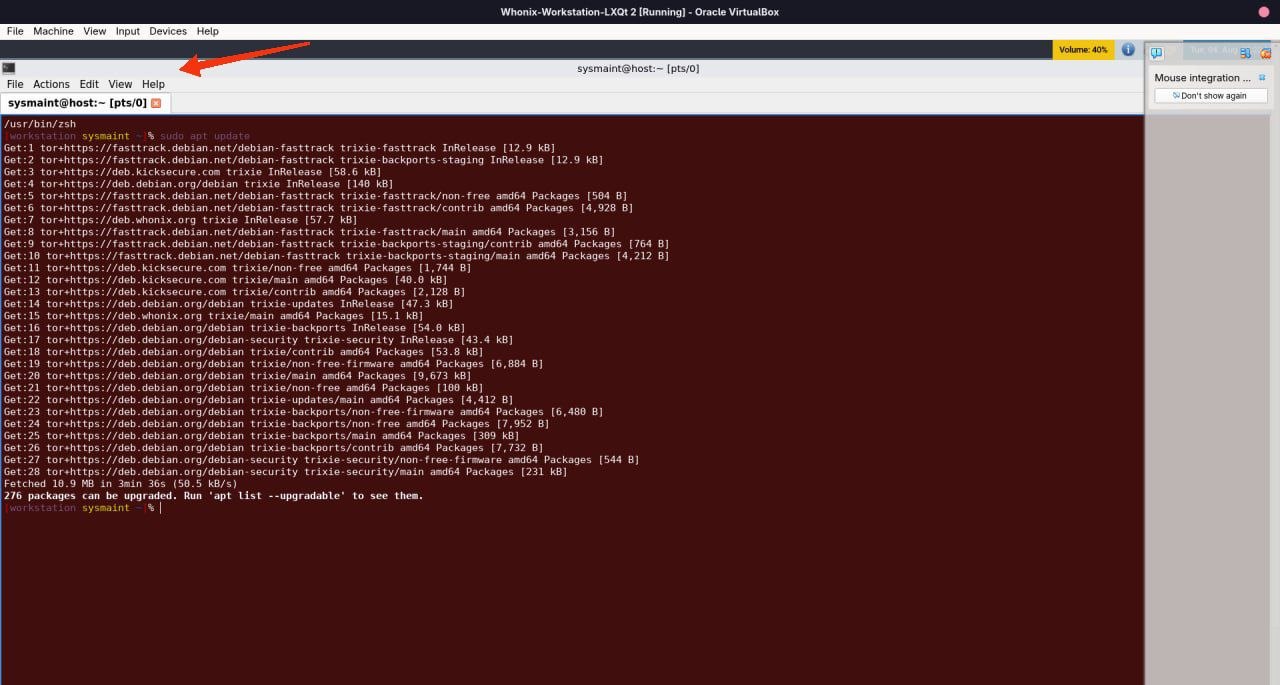
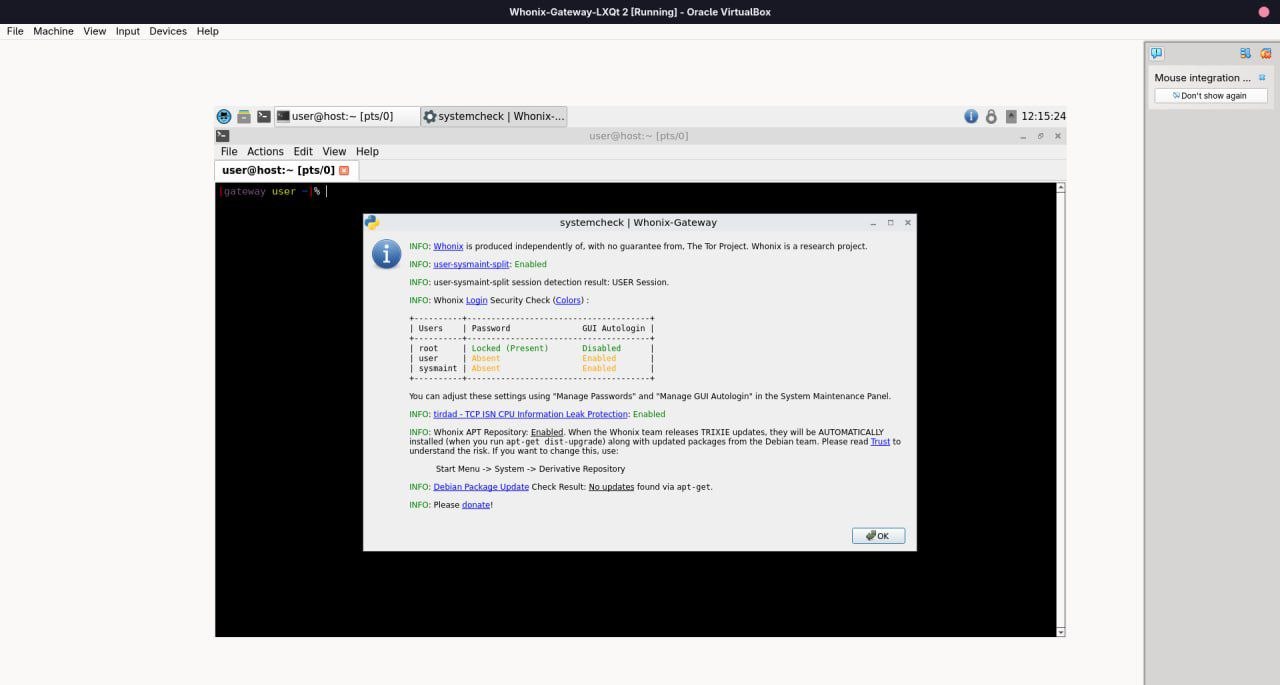
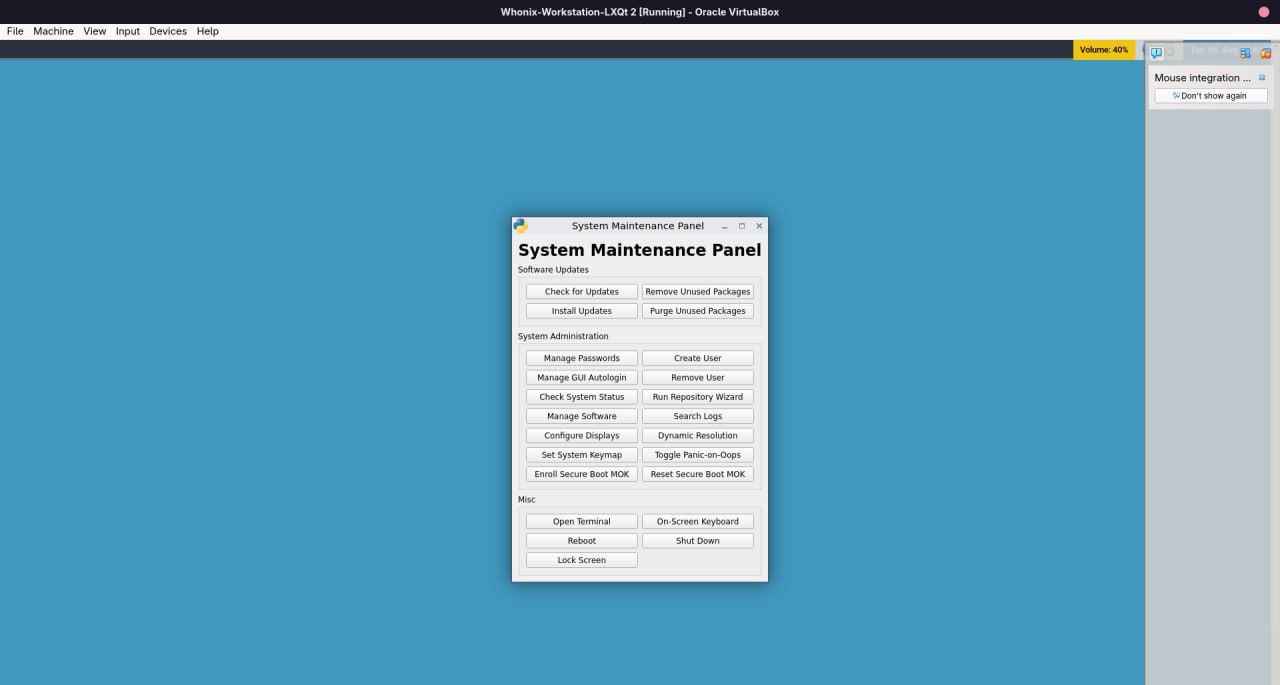
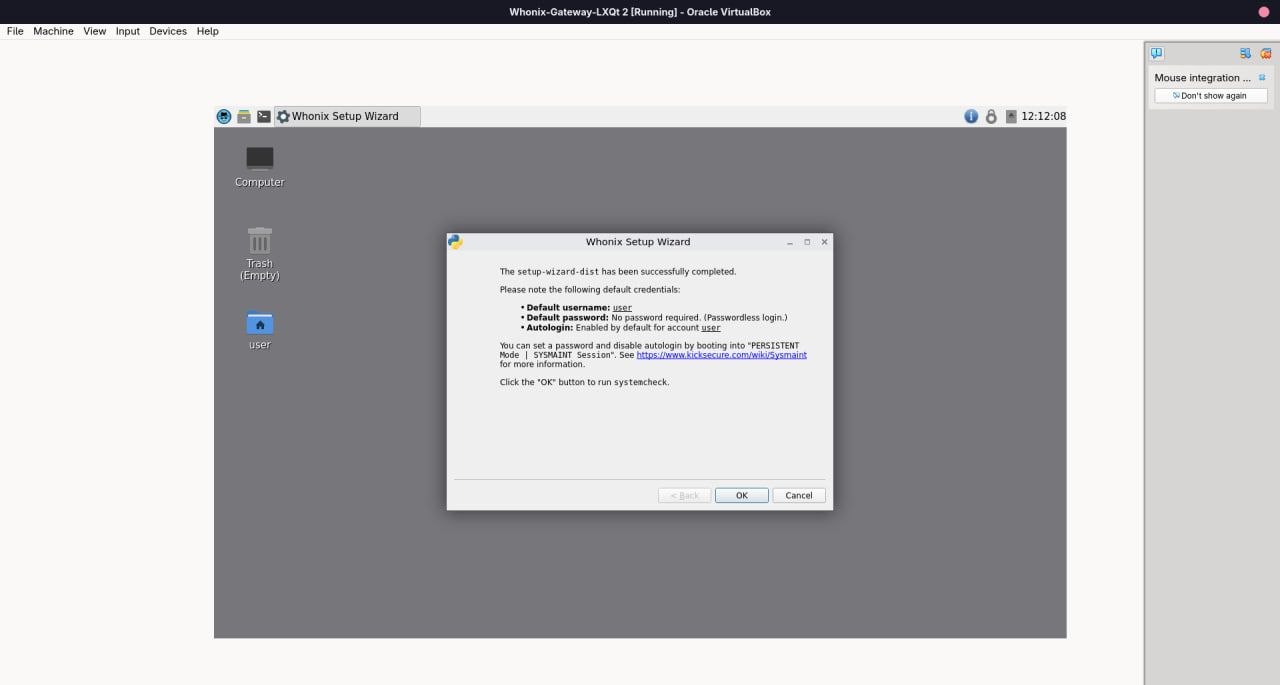
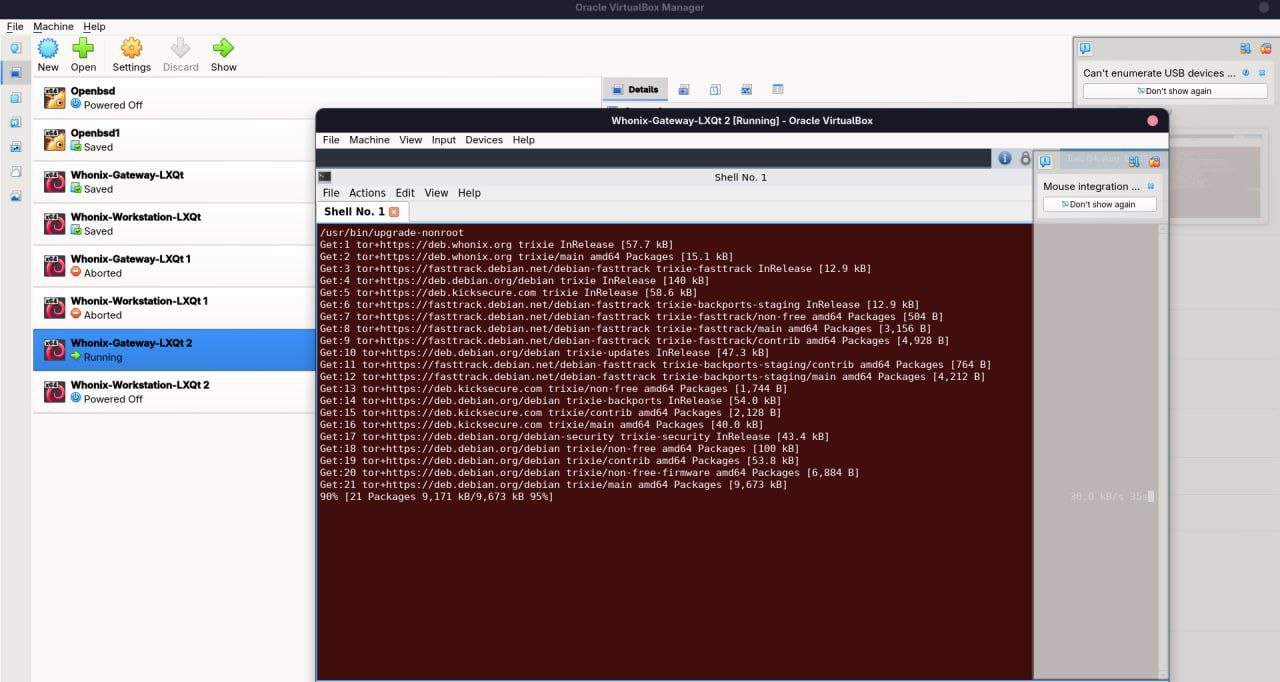
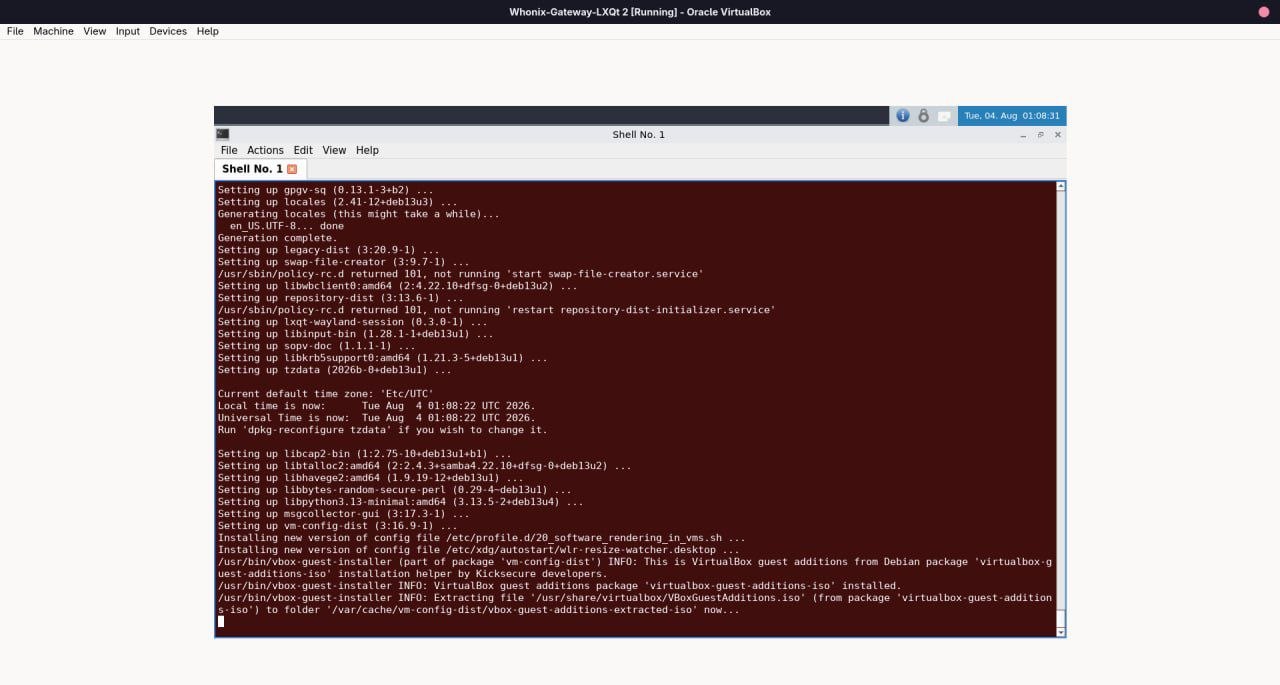
After doing a fresh installation, I was able to boot into the Sysmaint session successfully, and the system updated automatically through the System Maintenance Panel.
It seems the issue I experienced earlier may have been related to my previous installation rather than a graphics driver problem.
I decided to start over with a fresh Whonix installation in VirtualBox.
Instead of logging into the default user session, I booted directly into the Sysmaint session from the boot menu. After logging in, the System Maintenance Panel appeared automatically and started updating the system. I didn’t need to run any commands manually, and the update completed successfully.
My Whonix version is Whonix-LXQT 18.1.4.2.
From what I understand, I should update the Whonix-Gateway first before updating the Whonix-Workstation, so I’ll follow that order.